 Minmentoby WhiteMirror
A daily planner that reads your task list.
Plan a day or a week in the calendar view that fits the horizon, with no second list to keep in sync.
Switching between Month, Week, Day, Agenda and Multi-week
How planning works in Minmento
Minmento's calendar has five views of the same underlying data: Month, Week, Day, Agenda and Multi-week. Together with the Today smart list and reminders, it works as a daily planner: decide what matters, give it a time, and see it in the right view.
Pick the view that fits the question
A month at a glance for scheduling, a week to lay out meetings, a day to execute, an agenda when you just want a chronological to-do.
- Month: a traditional grid
- Week and Day: hourly slots
- Agenda: the next 30 days, grouped by day
- Multi-week: a compact fourteen-day grid
All five calendar views
Start every day from Today
Open the Today smart list for everything due, then use the Day view for the shape of it. Estimate durations in the task drawer so the day adds up.
- Tasks appear in the calendar from their due date and time
- Reminders keep the plan honest
- Energy Map shows the same day by energy instead of by hour
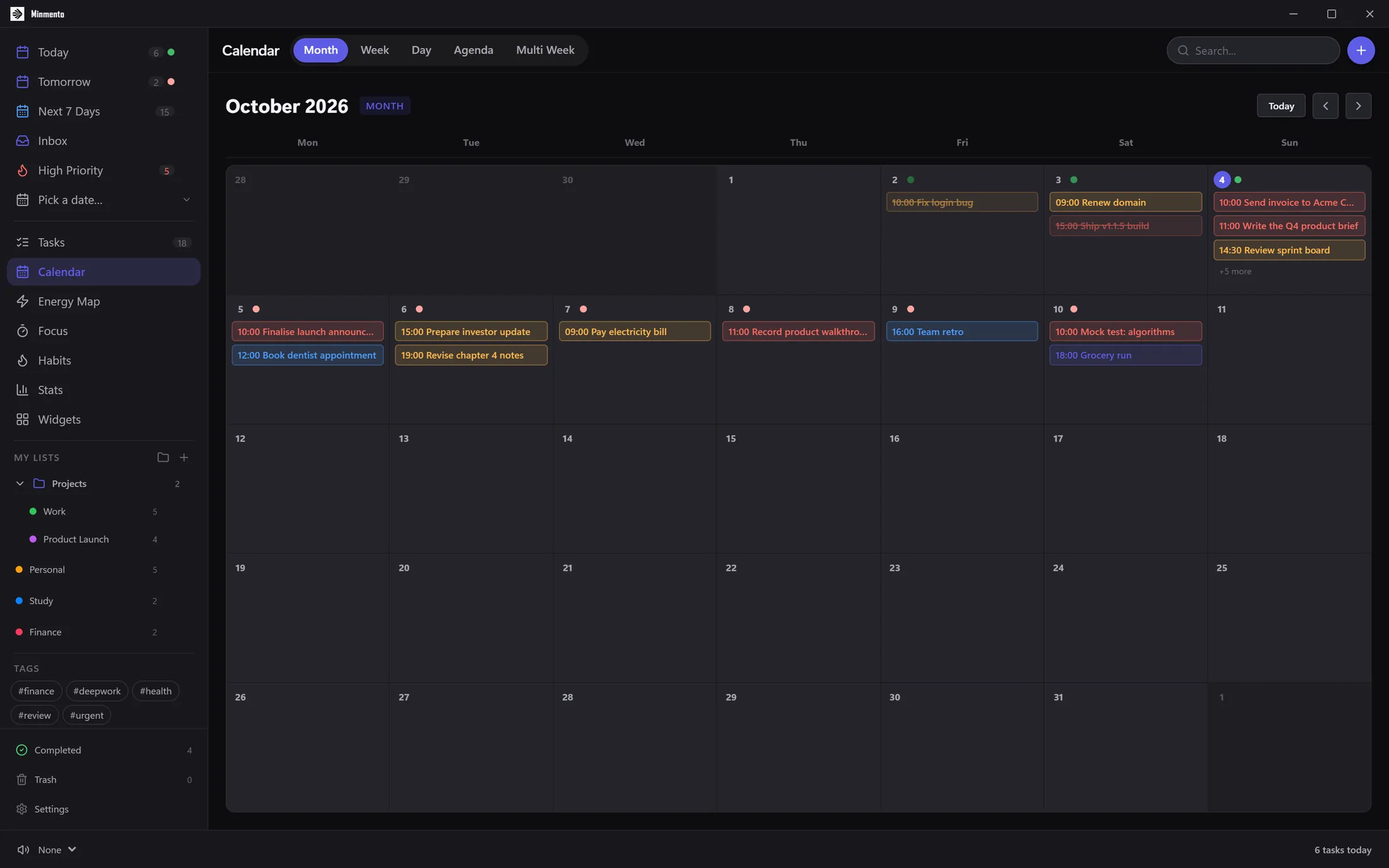
Month for scheduling, Week for meetings, Day for doing, Agenda for a plain chronological list. The question decides the view.
Every calendar view reads the same tasks, so rescheduling in one place changes it everywhere.
Three steps to get value
- Decide the dayOpen Today and pick the few tasks that matter, setting a time on each.
- Check the shapeOpen the Day or Week view to see whether the plan fits.
- Review tomorrowEnd the day with a look at Tomorrow and Next 7 Days.
Frequently asked
Can I plan a whole week?
Is there a separate calendar I need to maintain?
Related features
Put your work back on your own machine.
Get Minmento from the Microsoft Store. It runs on Windows 10 and Windows 11.
Get it from Microsoft Store